


Objectives:
Utilize Lexa AI Tools in Practice module text fields
Use Lexa in Contra module text areas
Apply AI tools within Gmail and Outlook Add-ons
Use Lexa in the Advisor and Client Portals
Steps:
Accessing AI Tools in Matters and Cases (Practice Module)
To get started:
Open the Practice Module from the navigation menu.

Select any corporate matter or litigation case from the grid.

Locate Lexa AI tools available in key text fields such as:
Important Developments
Status Comments
Description

Within these fields, highlight the desired text and click the Lexa AI icon.
Lexa offers the following AI-powered functions:

Translate: Instantly convert content into supported languages.
To translate text, select Translate with AI from the options under AI Tools. By default, the system will use the language set for the instance, but you can choose from other supported languages.

Summarize: Generate concise summaries of the existing content.

Change Tone: Adjust tone to either Professional or Casual.

Proofread: Correct grammar, punctuation, and spelling.

Rewrite: Rephrase content for improved clarity and readability.

Expand: Enrich content with added context or detail.

Each option provides results in real-time, allowing you to:
Copy the output
Replace the original text
Regenerate the result
Using AI in Notes
Lexa is also accessible within Notes:

Choose the target translation language from the top of the Notes section.
Click Translate with LEXA under the desired note.
Once translated, you can switch the language or hide the translation from view.

Accessing AI Tools in Contra
To use it:
Open the Contra Module
- Open any contract page from the grid
In the Contra Module, Lexa can be used:
At the Description field of any contract page.
- Highlight the desired text and click the Lexa icon to view the available options, then choose the action you need—such as translate, summarize, or rewrite—within the Description field.
- The steps for using Lexa here are the same as those in the Practice module.

- Inside the Notes section of the contract.
Choose the target translation language from the top of the Notes section.
Click Translate with LEXA under the desired note.
Once translated, you can switch the language or hide the translation from view.

Lexa in Add-ons (Gmail & Outlook Connect)
Lexa AI tools are also integrated into Gmail and Outlook Connect.
- Look for the Lexa icon in any text field when logging emails as new items or notes
- Then select the option you need, such as translating or summarizing the content

Lexa in Advisor and Client Portals
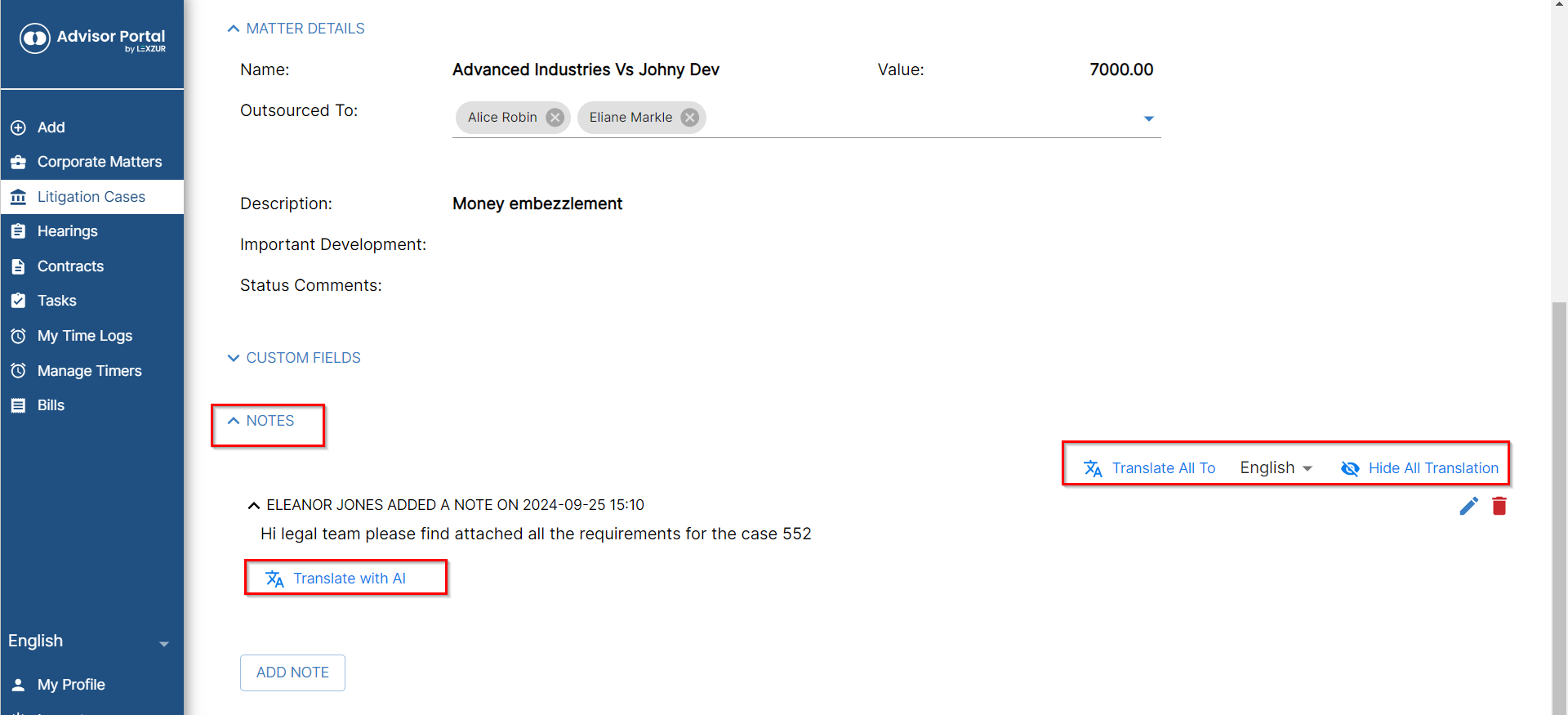
Lexa is available within the Notes sections of both the Advisor and Client Portals.
This allows clients and advisors to translate your notes into their preferred language—ensuring clarity and smoother collaboration.
Choose the target translation language from the top of the Notes section.
Click Translate with LEXA under the desired note.
Once translated, you can switch the language or hide the translation from view.
In Client Portal:

In Advisor Portal:
Lexa on the Lexzur Mobile App
All of Lexa’s AI features—translation, summarization, and more—are accessible on the Lexzur Mobile App, offering full functionality on the go.
For more information about LEXZUR, kindly reach out to us at help@lexzur.com.
Thank you!

This page has no comments.