


Objectives
- Approve tasks directly from email notifications
Approve tasks from the Approval Center inside the system
Understand and use Approval Subtasks
- Resend Approval Email
Steps
Approve Tasks From Email Notifications
When a task requires your approval, the system automatically sends you an email notification.
The email includes a direct link that takes you to the task page.
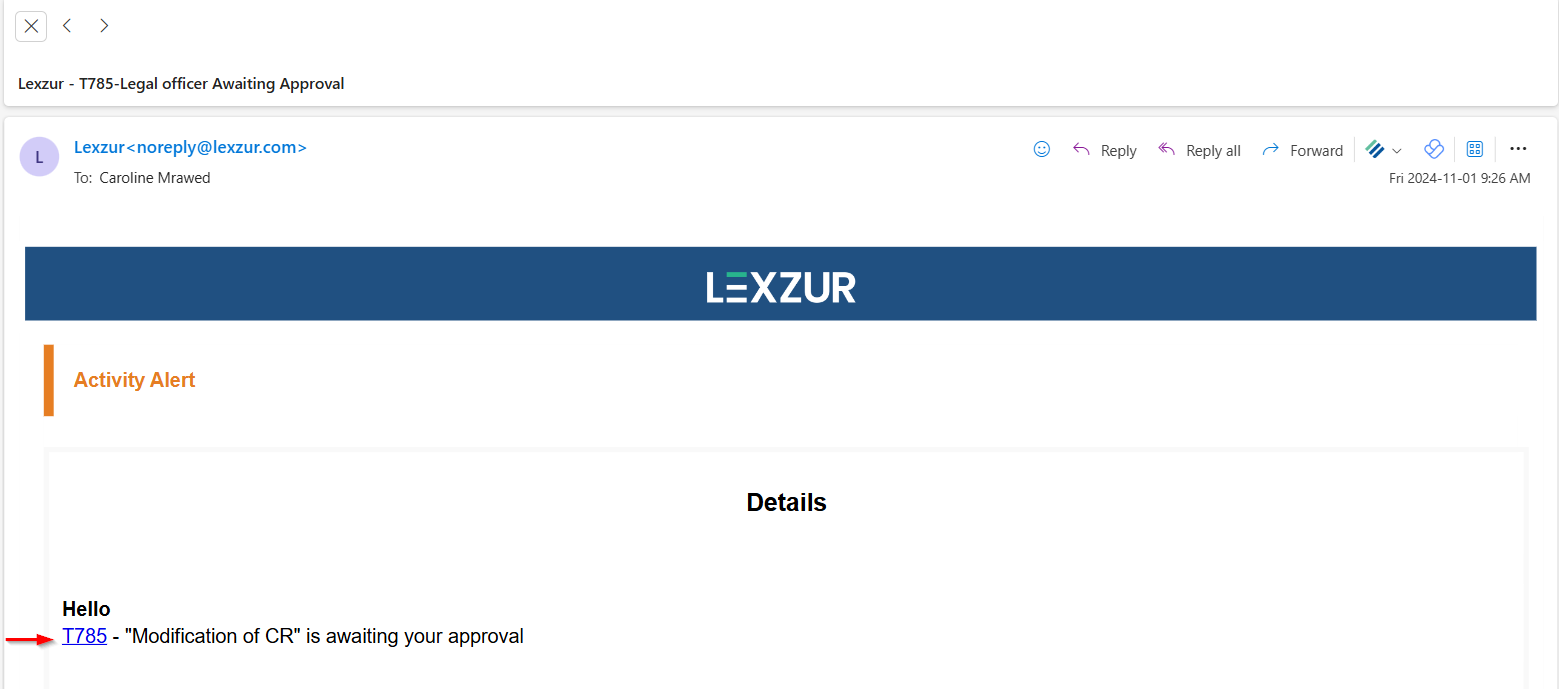
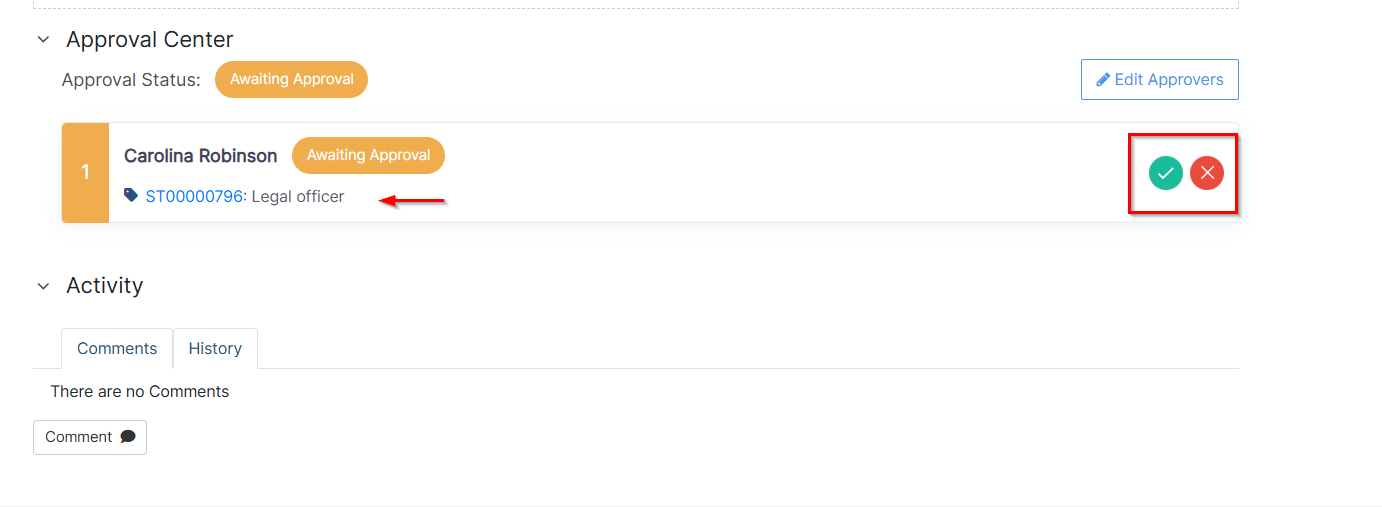
Once the page opens, scroll to the Approval Center and take the necessary action.
Approve Tasks From the Task Page
You can also approve tasks directly within Lexzur:
Open the Task Module from the main menu.

From the task grid, open the task awaiting your approval.

Scroll to the Approval Center.

Approval
Click the green tick to Approve.

Add a comment if needed (optional).

The workflow will automatically move to the next approver, who will receive their own email notification.

Rejection
Click the red cross to Reject.

A rejection comment is required.

If you are the first approver, your rejection stops the approval flow until you revise and approve the task.

All comments—whether approvals or rejections—are logged in the approval level for easy tracking.
Resend Approval Email
If needed, you can resend the approval email as a reminder.
An email is automatically sent when the approval center is initiated, but you may send additional reminders manually.

Approval Subtasks
When approvers are added, the system automatically creates a subtask for each approval step.
Click the Subtask ID next to the approval label to open it.

This subtask is dedicated to the approval action and includes tools for collaboration.

Within the approval subtask, you can:
Edit the description
Add comments
Attach files
Approve or reject the task
The comments will be added within the approval level to make easy for others to check the approval or rejection comments.
For more information about LEXZUR, kindly reach out to us at help@lexzur.com.
Thank you!

This page has no comments.