


Objectives:
Steps:
Lexzur allows users to customize contract tabs, showing or hiding tabs for each type. This ensures only relevant tabs are displayed, optimizing workflow organization.
Access the Tabs Configuration
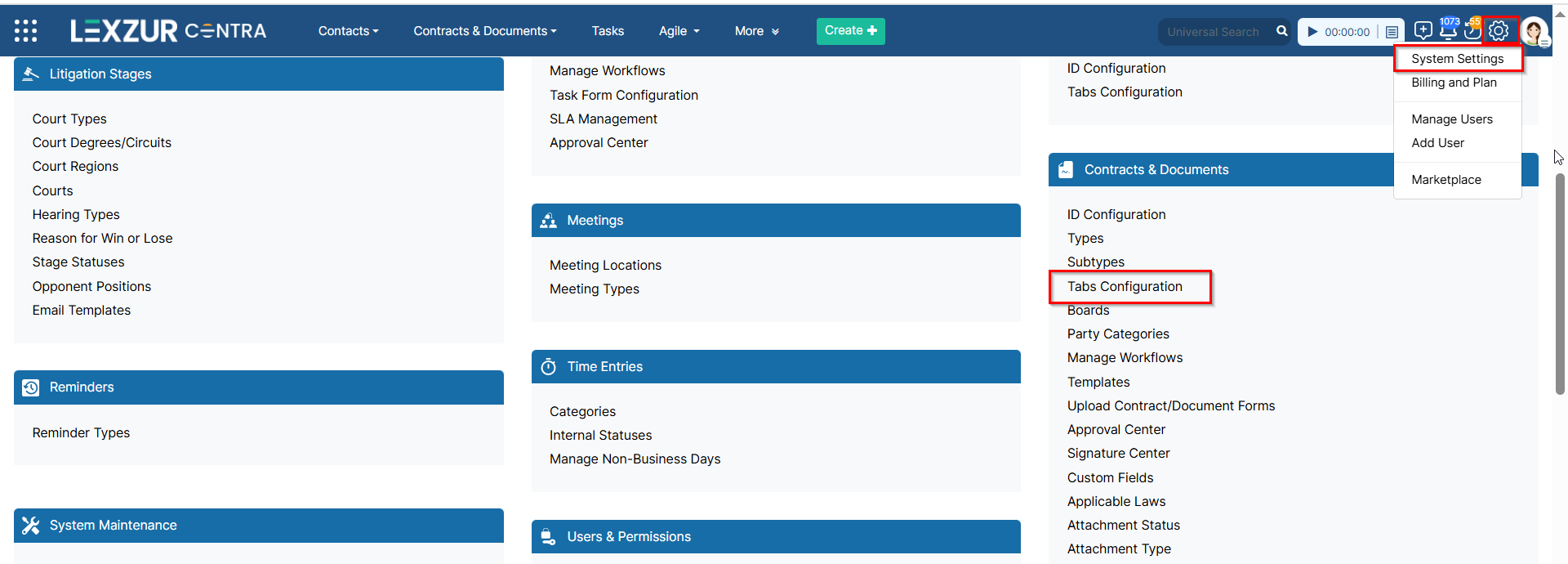
- Navigate to System Settings → Contract & Documents→ Tabs Configuration.
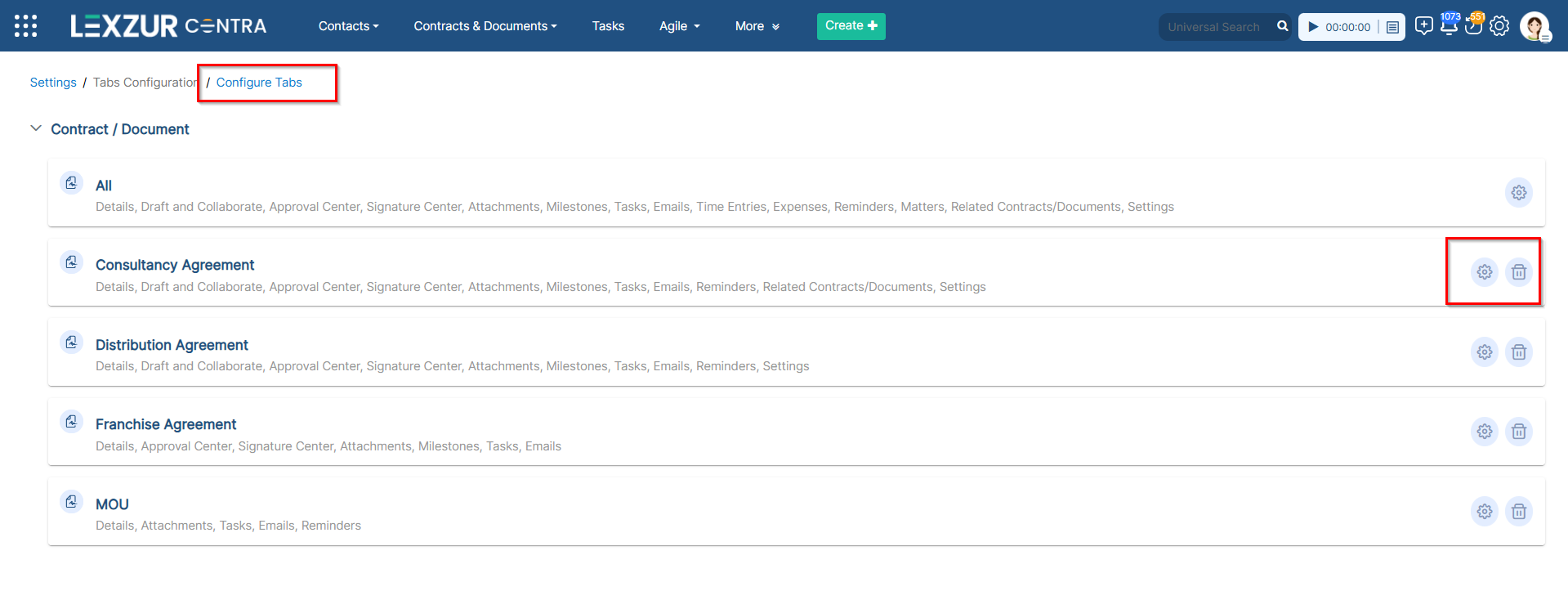
- You can edit or delete any existing configurations from this page.
Create a New Tab Configuration
- Click "Configure Tabs" at the top.
- Select the relevant Type or Sub Type for this configuration.

- On the right panel, you’ll see a list of all available tabs.
- Click the eye icon to show or hide specific tabs as needed.
- Changes are applied immediately, ensuring a workspace that matches your type and workflow.
Control Contract Tab Visibility from the Client Portal
Some tabs are shared between Contra and the Client Portal, allowing portal users to access certain features such as Draft & Collaborate, Approval Center, Signature Center, Attachments, and Milestones.
You can control the visibility of these tabs from the Client Portal.
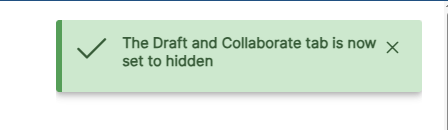
For example, if you want the Draft & Collaborate tab to be available only to internal Contra users and not visible to Client Portal users, simply click on the Client Portal icon to disable it. Once disabled, the tab will be hidden from the portal.

Reorder Tabs for Better Organization
You can also rearrange tabs to match your preferred workflow:
- Click and hold the tab you wish to move.
- Drag it to the desired position (e.g., placing "Attachments" right under "Approval Center").
- Release the tab, and the system will automatically save your changes.

- If you need to revert to the original tab arrangement, click the "Reset Order" button.
These updates will be applied to all contract pages with the selected Tab Configuration.

For more information on LEXZUR, reach out to us at help@lexzur.com
Thank you!

This page has no comments.