


Objectives
- Add/Edit contract details
- Add Notes
Steps
- Open the Contra Module from the main menu

- A Contract can be accessed from the Contracts & Documents Grid once it has been added.
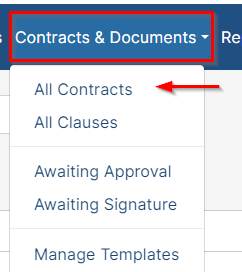
- Open the contract detailed page by clicking on the Contract Name or ID.

- The Contract details, dates, parties, description and people can be captured from the Details tab.

- On the left, there are sub tabs for capturing items related to this contract such as Approval center, Signature Center, Attachments etc..
- From the top of the page, you can:
- Update the contract workflow by clicking on the status name

- Activate/Deactivate the contract
- Edit the details by clicking on the edit icon
- From the 3 dots action you will find additional actions such as Renew, Create Amendment, Export to Word....

- In the middle of the screen, you have multiple sections to capture information related to the Contract.
- Details: Main Contract details.
- Parties
- Description
Notes
- History
- The Notes section can be used for collaboration and updates. Collaborators and the Contract team can communicate through Notes. Each new comment triggers an email notification to the involved parties.
You can tag people in the notes. The system will automatically suggest relevant individuals for tagging, such as assignees, requesters, watchers, or contributors, organized alphabetically.

- Along the right side of the page, you have a section for the Dates, where you can find all the contract dates and renewal types.
- You also have other sections related to the People related to this contract, Privacy options, and Notifications.

For more information about LEXZUR, kindly reach out to us at help@lexzur.com.
Thank you!

This page has no comments.