


Objectives
- Create or Upload Files/Folders
- Organize your documents
- Perform essential file actions ( Edit, Track, Search, Set privacy...)
Steps
Lexzur makes it easy to create, upload, and manage your files. You can manage files in two main locations within Lexzur:
Attachments Tab
Found within every record across the Practice and Contra modules—including matters, cases, contracts, tasks, clients, and more. Each record has its own dedicated attachments tab for storing and managing related documents.


iDocs
Acts as your centralized Document Management System (DMS) for company-wide documents. Use iDocs to manage entity-level files, templates, and other general documents not tied to a specific record.

The file management experience is consistent across both areas.
Creating and Uploading Files
You can start managing your documents by either:
Clicking on the “New” button to:
Add new folders
Create new Word, Excel, or PowerPoint files directly within Lexzur
- Create files via image text scanning.

Clicking on the “Upload” button to:
Upload files or entire folders from your computer
You can also drag and drop files or folders into the workspace

Managing Files and Folders
Once your documents are added, you can modify and organize them as needed. Simply select a file or folder from the grid to reveal available actions in the top toolbar.
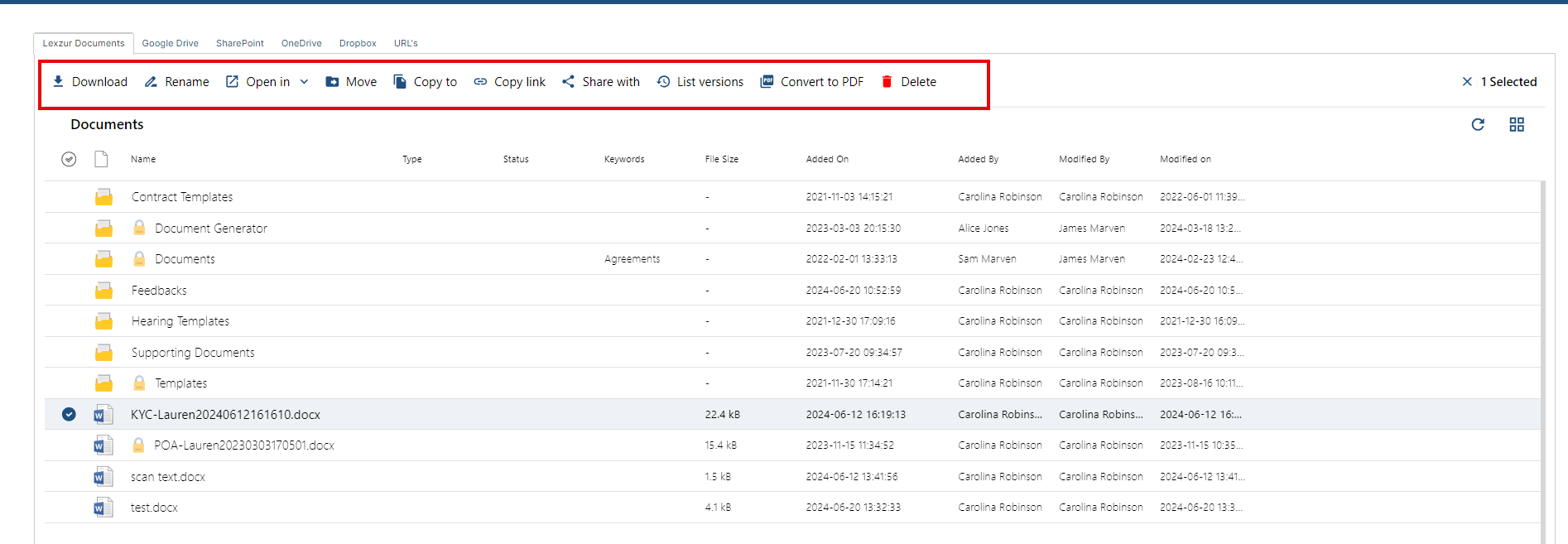
Here are the main actions you can perform:
Download – Download the selected file to your device
Rename – Rename files or folders directly
Open in – Choose to open the file in Lexzur Editor or Word for the Web (Clicking the file name also opens a preview using your default editor)
Move – Move the file to another folder
Copy to – Copy the file to an existing or new folder
Copy Link – Copy the direct link to the file for quick access
Share with – Share the file internally or externally (see details below)
List Versions – View the version history including who made changes and when. You can also download previous versions
Convert to PDF – Instantly convert the file to PDF format
Delete – Remove the selected file or folder
Editing Files in Lexzur
Files can be opened using either Word for the Web or the Lexzur Editor.

The Lexzur Editor supports Word, Excel, PowerPoint, and PDF formats. All changes are auto-saved, and a new version of the file is automatically created.


You can view version history to track document updates, identify who made changes, and revert or download older versions if needed.

Sharing Documents
Lexzur offers secure and flexible sharing options:
Internal Sharing (within your organization)
Click Share, search for the user by name, and assign either Viewer or Editor permission

Add any comments or instructions, then Add the recipients.

Once shared, the file becomes private and accessible only to the document owner and selected recipients

Recipients are notified via email and can access the shared file either through email or directly from Lexzur
External Sharing (outside your organization)
Enter the recipient’s email address and click Add as External

Choose their permission level (view/edit) and add a message if needed
The recipient will receive the document by email. If given edit rights, they can update the document, and all changes will be automatically reflected in your Lexzur system

You can track who made updates and check the latest version from the Attachments Tab
Smart Search
Use the Search tab to quickly locate any document, folder, or file using keywords. The search will return all related results across your system.

Cloud Storage Integrations
Lexzur integrates with leading cloud storage platforms, including:
Google Drive
OneDrive
Dropbox
SharePoint
- iManage

With Lexzur 360 Docs, you can:
Access your cloud accounts from within Lexzur
Retrieve or link documents directly to your records
Upload or store files seamlessly between platforms
You must first enable the integration to use Lexzur 360 Docs. Learn more here
For more information about LEXZUR, kindly reach out to us at help@lexzur.com.
Thank you!

This page has no comments.