


Objectives
- Insert a Litigation case in the database
- Correct/Revise/Update data related to an existing Case
- Capture and manage a Litigation Case’s details
Steps
In Lexzur, you can efficiently manage Litigation Cases at every stage in a smart and agile central software workspace, where users can collaborate with internal and external stakeholders, keep track of legal deadlines and automate reminders sent as emails or notifications.
Adding New Litigation Cases:
Open the Practice Module from the main navigation menu.

To add a new Litigation Cases, click the Create button in the top menu and select Litigation Case from the list.

Filling in Case Details:
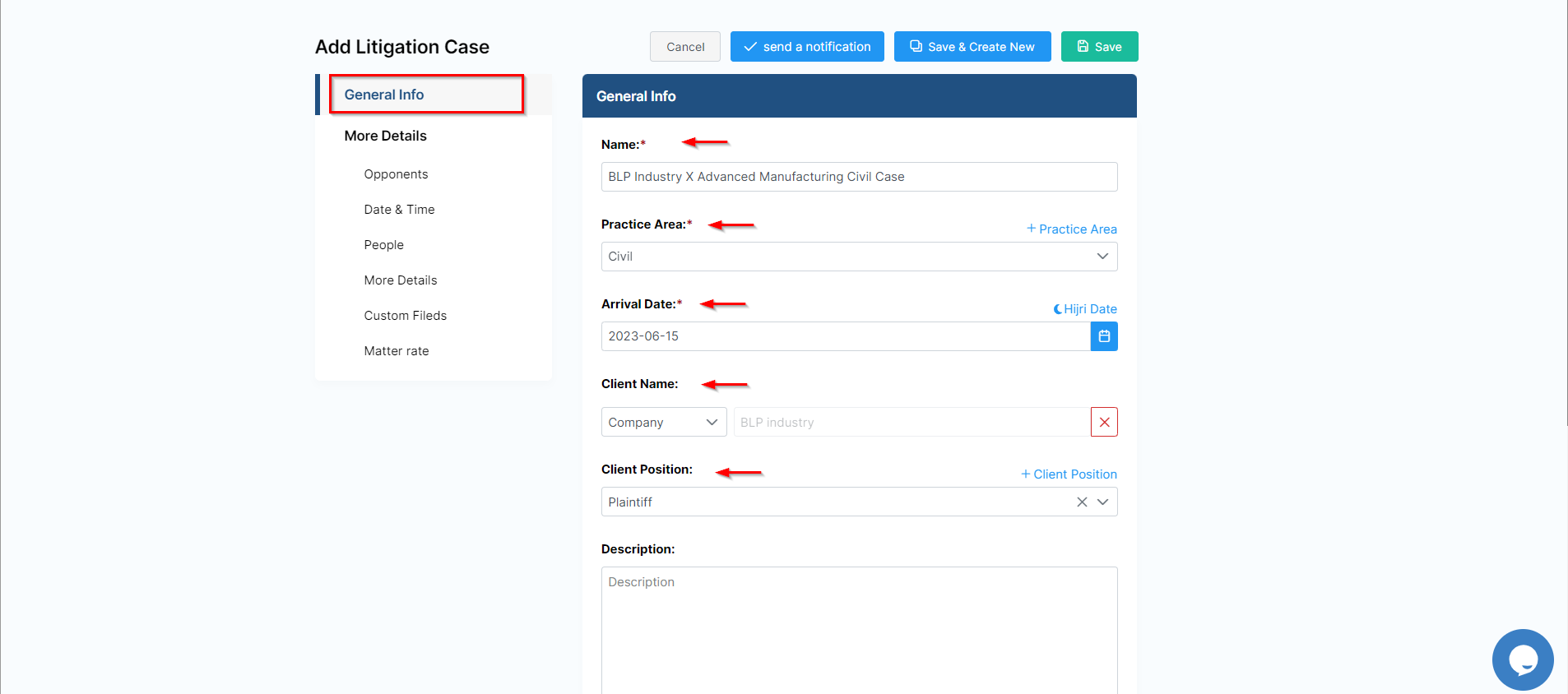
There are some fields that need to be filled out such as the:
- Name
- Practice Area
- Arrival Date
- client name and position
- Opponent name and position
in addition to some information such as due date, assignee user, matter rate, or custom fields.
You can now track and manage all your litigation cases from one grid. From the main menu choose Litigation Cases to open the grid.

Searching for Cases:
Start by using the advanced filters to search for a specific Litigation Case based on your chosen criteria. Open the "All Filters" section and select the necessary criteria.

For example, you can search by practice area, assignee, client name, and more. You can also save filters from the grid as a new list page and clear filters with a single click.
There are three filters available for direct use on the grid: matter ID, name, or practice area, enabling you to quickly find cases.

Saved filters will be added to the drop-down list, allowing you to easily select the case list you wish to view.

In the top right corner of the page, you can export your results to an Excel sheet. You can also manage filters, add new cases, and use tools to archive and change assignees.

Matters Detailed Page:
Now, to go further with additional modifications, click on the Matter’s name or ID to open its page.
The General Info Tab allows you to add details or modify existing information, update workflow statuses, and record any important developments or updates.

For efficient collaboration, you can outsource this case to external Legal Practitioners, and take note of all the noteworthy updates related to this case.

In addition, you can also log emails with attachments as matter notes using Outlook or Gmail Connect.
On the stages and activities tab, you can add and track litigation stages, hearings, events, tasks, and reminders.

Change stages by filling out some information such as the stage name, status, Judgement date, and court-related details. You can then add and track all the associated hearings, tasks, and events with the current stage, along with all their details.
You can always update hearing details, set judgements, generate hearing reports, and much more.
Assign tasks and set reminders to your team when several people are working in parallel on the same stream. You can then track all the associated tasks and reminders with the current matter, along with all their details.

Furthermore, you can send emails from the case itself and track all the related email conversations as well.

The Attachments Tab lets you organize folder structures and upload and manage documents related to this case.

In addition, record expenses and time logs, so you can determine what to invoice later. And keep track of all the matter-related bills as well.
Moreover, you can add all the invoices related to this case from the Invoices tab.

Last but not least, you can link this case to an existing Matter or Contract in Lexzur. You can also adjust the users' rates, matter rate, capping, partners’ percentage, and the billing preference of this Litigation Case from the Settings tab.

For more information about LEXZUR, kindly reach out to us at help@lexzur.com.
Thank you!

This page has no comments.